How to Search the Text in Scanned School Papers on iPhone
Last updated 2026-10-29
When you can't remember the field trip date, there's no need to flip through dozens of notices. Paperkeep reads the text on every scanned page on your iPhone, so you can search by words in the body, not just titles, and it shows which page the match is on. None of this needs Pro.
First, with iOS's built-in tools
- If you scanned the notices into Notes, try the Notes search field; it looks at the text in scanned documents too.
- Notices you only photographed can sometimes turn up in a Photos search for words in the picture.
- Search in the Files app leans mostly on file names, so give scanned PDFs descriptive names.
With Paperkeep
- When a notice comes home, scan it and tap “Save”. A moment later Paperkeep has read the text and it's searchable; “Reading text…” on the open document means it's still working.
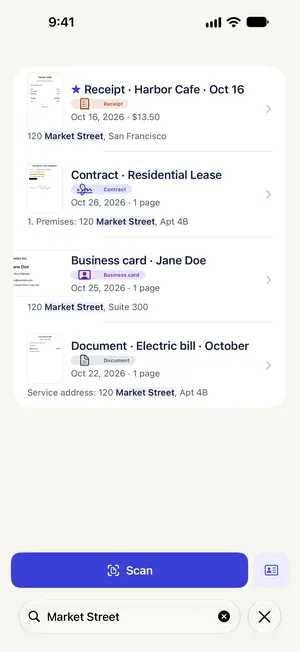
- Type a word such as “field trip” or “bring” into the search field (“Titles and text in your documents”) on the main screen.
- Each result shows the line with your word in bold, plus the page number for multi-page documents.
- Tap a result to open it. To reuse the details, tap that page's copy button (“Copy Text of This Page”) and paste into Calendar or Notes.
Tips for this document
- Search ignores capitals and accents, so “spanish club” finds a flyer that says “Spanish Club”.
- If a notice never shows up, the print was probably faint. Try the “Enhance” or “Grayscale” filter on the next scan.
- Text recognition covers English, Korean and Japanese; set your “Main language” under Settings → “Text Recognition”.
Coming soon to the App Store.