How to Scan a Contract to PDF on iPhone and Send It
Last updated 2026-10-29
A contract is easier to review when every page sits in one file, in order. Paperkeep's document camera captures page after page into a single PDF, and everything from scanning to sharing is free, with no watermark. The PDF stays on this iPhone until you pick where to send it.
First, with iOS's built-in tools
- Open the Files app, go to the folder you want, tap the “⋯” button at the top and choose “Scan Documents”.
- Hold the camera over each page and it captures automatically. After the last page, tap “Save” and all pages land in one PDF.
- Touch and hold the new PDF, choose “Share” and send it by Mail or Messages.
- The file gets a generic name, so rename it right away if you want to find it later.
With Paperkeep
- On the main Documents screen, tap “Scan” at the bottom to open the document camera.
- Capture the pages in order, from page one to the signature page, then tap “Save” on the camera screen.
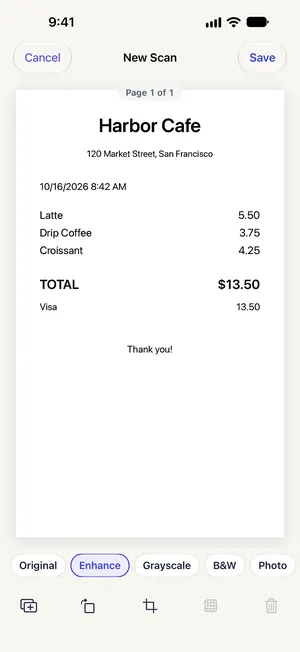
- Check each page on the “New Scan” screen. Fix a tilted page with “Crop” and a misplaced one with “Arrange Pages”.
- The “B&W” filter keeps contract text crisp; with several pages, tap “Use B&W on every page”, then “Save”.
- Open the contract from the list and tap the share button (the square with an arrow) at the top. The PDF goes straight to the share sheet, where you pick Mail, Messages or another app.
Tips for this document
- Include the signature page and any addendum or exhibit; those are the pages most often left out of a scanned contract.
- If initials run along the page margins, keep the whole sheet edge to edge in the frame so none get cropped.
- Rename the document (for example “2026 Lease Agreement”) with “Rename”; the PDF in the Files app takes the same name.
- Keep the signed paper original. A scan is a copy, and some parties may still ask for the paper.
Coming soon to the App Store.