How to Scan Handwritten Notes to PDF on iPhone
Last updated 2026-10-29
Pencil notes come out faint and a notebook page curves, so a plain photo is hard to read. Paperkeep's document camera straightens each page, the “Enhance” or “B&W” filter darkens the pencil, and everything is saved as one PDF. Turning a notebook into a PDF and passing it on doesn't need Pro.
First, with iOS's built-in tools
- The “Scan Documents” option in Notes handles notebook pages well; keep capturing and the pages collect in one note.
- Switching the scan filter to black-and-white or grayscale makes pencil a little clearer.
- To send it as a PDF, open the scan and tap the share button. For one folder per class, set up note folders yourself.
With Paperkeep
- Tap “Scan”, open the notebook and capture one page at a time, then tap “Save” after the last one.
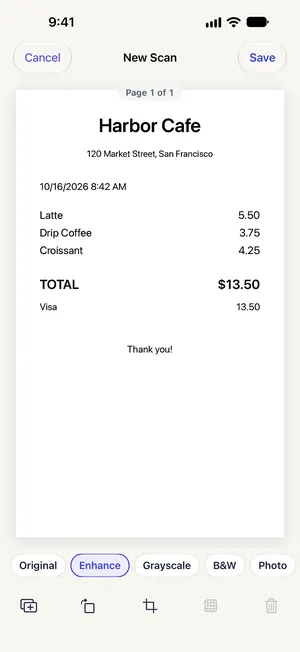
- On the “New Scan” screen, choose “B&W” for pencil or “Enhance” to keep highlighter and colored pens, then use “Use … on every page” to match all pages.
- Re-fit a clipped page with “Crop” → “Find edges”, and add a missed page with “Add pages” → “Scan more pages”.
- In “Arrange Pages”, drag the handle (≡) on the right of each page into place, then tap “Save”.
- Make a folder per class with “More” (⋯) → “New Folder”, then file the notes with “Move to Folder”.
Tips for this document
- Scan a spiral notebook one page at a time; a two-page spread picks up a shadow along the spine.
- Handwriting is recognized less reliably than print, so put the class and topic in the title rather than counting on search.
- Sharing notes with a study group? Free exports carry no watermark, so the PDF goes out as is.
Coming soon to the App Store.