How to Sign a PDF Contract on iPhone Without Printing
Last updated 2026-10-29 · Paperkeep Pro feature
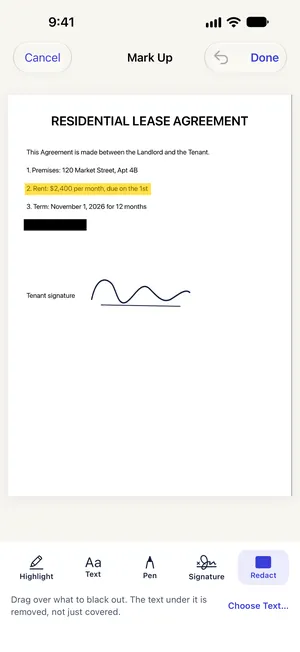
When a contract arrives by email and only needs your signature, there's no need to print it and scan it back in. With Paperkeep Pro's “Sign” tool you draw your signature once and drag it onto the signature line. The drawing is kept only in this iPhone's Keychain, ready for the next contract.
First, with iOS's built-in tools
- Save the emailed PDF to the Files app and open it.
- Tap the Markup button (the pen tip) at the top, then “+” and “Add Signature”.
- Sign with your finger and tap “Done”. Resize and place the signature, then tap “Done” again to save.
- The built-in tool does the job well. It writes over the original PDF, so duplicate the file first if you want to keep an unsigned copy.
With Paperkeep
- If the contract came as a PDF, tap the Import button (the down arrow) at the top and choose “From Files”. For a paper contract, tap “Scan” instead.
- Open the contract, tap the “Tools” button (the magic wand) and choose “Sign”.
- The first time, the “Your Signature” screen opens. Sign on the line and tap “Save”; “Clear” lets you start over.
- Use the page arrows to reach the signature page and drag your signature onto the line. Add the date or your printed name with the “Text” tool.
- Tap “Done”, then “Tools” → “Export…”, keep PDF and tap “Share” to send the signed contract back.
Tips for this document
- This places an image of your handwritten signature. If the other party uses a specific e-signature service, follow their process instead.
- Need initials on every page? Move to each page and tap “Signature” again; the saved signature drops onto that page.
- Placed it in the wrong spot? Tap the signature and choose “Delete Mark”, or use the undo button.
Coming soon to the App Store.