How to Turn Scanned Receipts into a Spreadsheet for Expense Reports
Last updated 2026-10-29 · Paperkeep Pro feature
Typing a month of receipts into a spreadsheet by hand takes longer than it should. Paperkeep Pro's “Export CSV” writes one row per receipt in the date range you pick, with the date, shop, total and currency. The file is created only when you share it, and you choose where it goes.
First, with iOS's built-in tools
- iOS's own apps don't read amounts off receipt images into a table.
- The dependable built-in route is a Numbers sheet with Date, Shop and Amount columns, filled in by hand while you look at each scanned receipt.
- When you're done, Numbers can export the sheet as an Excel or CSV file.
With Paperkeep
- Scan your receipts first. Only documents Paperkeep has filed as “Receipt” go into the CSV.
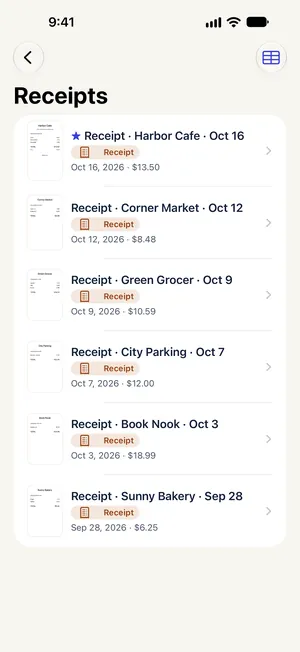
- Go into the “Receipts” smart folder, listed under “Smart Folders” on the main screen.
- Tap the table-shaped “Export CSV” button at the top right.
- On “Receipts as CSV”, set “From” and “To” to the period you're claiming.
- Tap “Share”, then pick Mail to send it to your finance team or “Save to Files” to keep it, and open it in Numbers or Excel.
Tips for this document
- Totals in the CSV are what Paperkeep read from each receipt. Before you submit, check any blank or odd-looking row against the receipt image.
- A scan that wasn't filed as a receipt won't appear; switch its “Type” to “Receipt” on the document screen.
- Currency gets its own column, so a trip with dollars, yen and won on the same report stays readable.
Coming soon to the App Store.