How to Make a Scanned PDF Searchable on iPhone (OCR)
Last updated 2026-10-29 · Paperkeep Pro feature
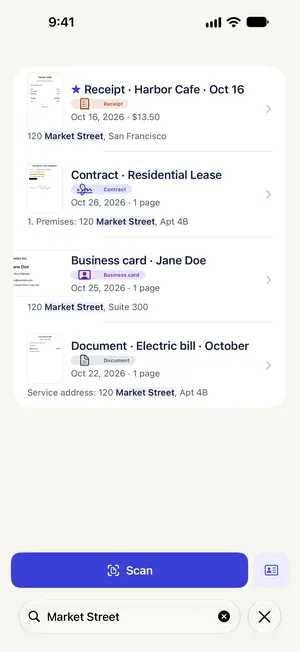
A scanned PDF looks like text but is really a picture, so other apps can't search or copy it. Paperkeep Pro's “Searchable text” option writes the text recognized on your iPhone into the PDF as an invisible layer, so the Files app and other PDF readers can find words in it. Searching inside Paperkeep itself works without Pro.
First, with iOS's built-in tools
- iOS has no menu that adds a text layer to a scanned PDF.
- Scans kept in Notes are searchable from the Notes search, but only inside Notes.
- You can touch and hold text in a photo to select and copy it, but one screen at a time is slow for a 30-page course reader.
With Paperkeep
- Scan the handout with “Scan” and tap “Save”. A “B&W” or “Grayscale” filter keeps the print crisp, which helps recognition.
- The export screen lives under the handout's “Tools” → “Export…”.
- Turn on “Searchable text”; the switch only shows while the format is “PDF”.
- Tap “Save to Files” to pick a folder, or “Share” to send it to another app. In that PDF you can search for words and select sentences to copy.
- With Pro, leaving “Searchable text” on in Settings also adds the text layer to the PDFs in Files › On My iPhone › Paperkeep.
Tips for this document
- The text layer is exactly what Paperkeep recognized, mistakes included, so check any line you quote against the image.
- Because the layer is invisible, the PDF looks and prints exactly like the original scan.
- Rotating or cropping a page makes Paperkeep read it again; export after it finishes so the text lines up with the page.
Coming soon to the App Store.