How to Redact Your ID Number Before Sending a Copy (iPhone)
Last updated 2026-10-29 · Paperkeep Pro feature
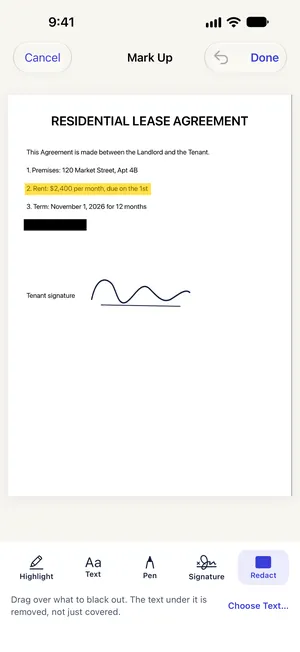
Plenty of places that ask for a copy of your ID don't need every number on it. Paperkeep Pro's “Redact” burns the black box into the page image and drops the recognized text underneath, so it can't be copied or searched back out.
First, with iOS's built-in tools
- For a photo, open it in Photos, tap “Edit”, then the Markup button, and color over the number with a thick black pen.
- For a PDF, Markup in the Files app can draw a box too, but on a PDF that box is saved as an annotation that other PDF apps may be able to select and move.
- If you want to be sure, the simplest built-in route is to black out a photo and send it as an image.
With Paperkeep
- With the ID scan open, pick “Redact” from the “Tools” menu; the “Mark Up” screen opens.
- Drag your finger across the number and a black box appears over it.
- To pick a line exactly, tap “Choose Text…” next to the hint, tick the line with the number and tap “Black Out”.
- If the back has something to hide too, use the page arrows to move there and repeat. Tap “Done” when finished.
- Send the redacted copy with the share button or through “Tools” → “Export…”.
Tips for this document
- Ask the recipient which numbers they actually need before you black anything out.
- Redaction applies to the document inside Paperkeep. If you also want an unredacted copy, make one first with “Tools” → “Duplicate” and redact the copy.
- Draw the box a little larger than the number so no edge of a digit peeks out.
Coming soon to the App Store.